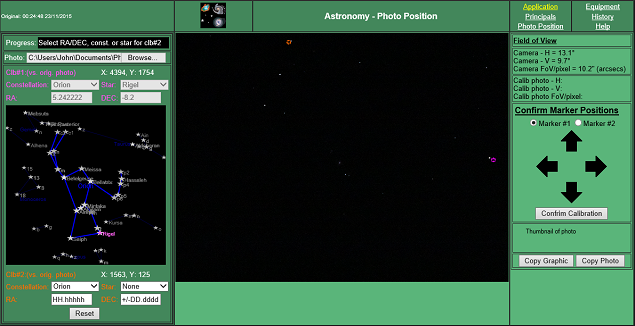
Astronomy - PhotoPosition, Screen with partially calibrated photo
PhotoPosition Help
With loaded photo and partly calibrated
Application
Principals
PhotoPosition
Equipment
History
Help, P2
<==         Help       ==>
Photo's date/time has been updated
- read from selected file

Progress shows next prompt
Photo already selected (different layout in Chrome)
App has updated X, Y for Clb#1 - see below
User also selected Constellation
User also clicked on appropriate star in graphic
App has indicated the star in drop-down and updated RA/DEC parameters


Graphic shows selected:
  • Constellation
  • Stars, with names
  • Constellation lines
  • Highlighted selected star (in pink)


App X, Y has also been updated for Clb#2
And, retained the previously selected constellation


Camera's FoV details were updated once the file had loaded. In this case it is based on:
  • EXIF meta tag data
  • Known parameters for the NIKON COOLPIX P600
If the appropriate EXIF meta tags are NOT available and the camera isn't known to the App, FoV data will not be available.

The expected order of entry is:
  1. Select file
    • The App will:
    • Load the file
    • Display it in the photo window
    • Update the file date/time
    • Update the camera FoV parameters - if possible
  2. Click on the photo at the 1st calibration point - probably an identifiable star
    • The App will:
    • Display a pink marker at this point
    • Update X, Y photo co-ordinates (original size) in the left pane
  3. Select one of the following:
    1. Select a constellation in the drop-down box for Clb#1
      • The App will:
      • Load the graphic with the constellation details
      • Display details of adjacent constellations
      • Populate the drop-down with relevant star details
    2. Enter RA & DEC co-ordinates in their appropriate boxes for Clb#1. Now got to point X below.
  1. Select a star from the following:
    1. From the star drop-down box for Clb#1
    2. Click on the star in the graphic
      • The App will:
      • Select the star in the drop-down
      • Redraw the star in pink on the graphic
      • Populate the RA/DEC co-ordinates (for Clb#1) from its' database
  2. Click on the photo at the 2nd calibration point
    • The App will:
    • Display an orange marker at this point
    • Update X, Y photo co-ordinates (original size) in the left pane
  3. Select a new constellation (if necessary)
    • The App will:
    • Redraw the graphic
    • Populate the drop-down with relevant star details, for Clb#2
  4. Select a star from the following:
    1. From the star drop-down box for Clb#2
    2. Click on the star in the graphic
      • The App will:
      • Select the star in the drop-down
      • Redraw the star in orange on the graphic
      • Populate the RA/DEC co-ordinates (for Clb#2) from its' database
      • Calibrate the photo